Accessing Batch Export

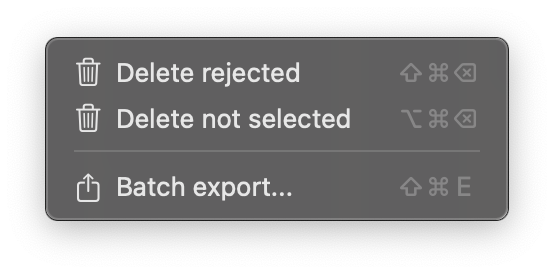
Open the batch export window through the Image menu

CullEdit menu showing batch export option

Quick Access

The most efficient way to access batch export is using the keyboard shortcut:

This shortcut works from anywhere in CullEdit, providing instant access to the batch export functionality.

Batch Export Interface

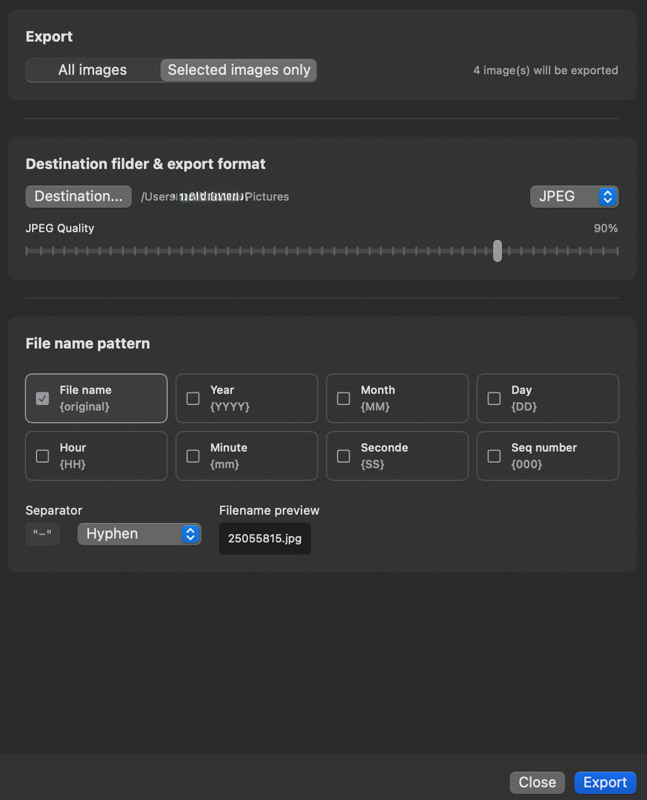
The batch export window provides comprehensive controls for configuring your export operation

Export Scope Selection

Choose which images to include in the export:

  • All Images: Export every image in the current folder
  • Selected Images Only: Export only images marked as selected
  • Image Count Display: Shows number of images that will be exported

Destination Folder Selection

Specify where exported files will be saved:

  • Destination Button: Click to open folder selection dialog
  • Path Display: Shows selected destination folder path
  • Default Location: Pictures folder if no destination selected
CullEdit batch export window interface

File Format Options

Choose the output format for exported images

JPEG

  • Best for: Web sharing and general use
  • Quality slider: 50-100% quality control
  • File extension: .jpg
  • Compression: Lossy but efficient
  • Usage: Social media, email, web galleries

PNG

  • Best for: Images requiring transparency
  • Lossless compression: No quality loss
  • File extension: .png
  • Larger file sizes: Better quality but bigger files
  • Usage: Graphics, screenshots, images with text

TIFF

  • Best for: Print and archival purposes
  • Uncompressed or LZW compression: Highest quality
  • File extension: .tif
  • Largest file sizes: Maximum quality preservation
  • Usage: Professional print, archival storage

File Naming Patterns

Customize exported filename structure

Available naming components

  • File Name: Original filename without extension
  • Year: 4-digit year from image date
  • Month: 2-digit month from image date
  • Day: 2-digit day from image date
  • Hour: 2-digit hour from image date
  • Minute: 2-digit minute from image date
  • Second: 2-digit second from image date
  • Sequence: 3-digit sequential number

Customizing File Names

  • Pattern Selection: Toggle components on/off
  • Separator Options: Choose character between components
    • None (components run together)
    • Underscore (_)
    • Hyphen (-)
    • Dot (.)
  • Preview Display: See example filename before export
  • Conflict Handling: Automatic numbering for duplicate names