Launching CullEdit

To start using CullEdit:

  1. Locate the CullEdit application in your Applications folder
  2. Double-click the CullEdit icon to launch the application
  3. The main interface will appear with an empty thumbnail panel on the left

Opening a Folder of Images

CullEdit works with folders of images rather than individual files:

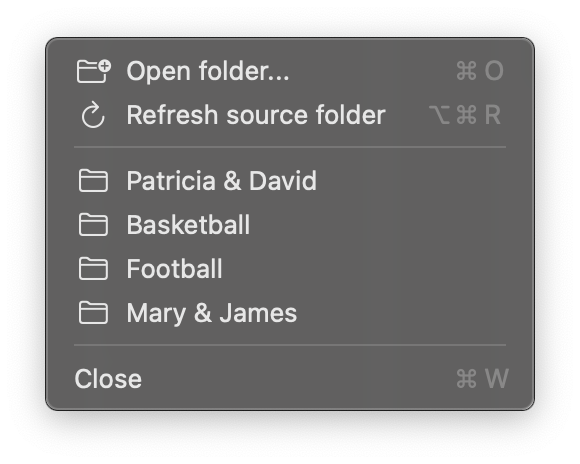
  1. From the menu bar, select FileOpen Folder... (or use keyboard shortcut Cmd + O)
  2. Navigate to the folder containing your images
  3. Select the folder and click Open
  4. CullEdit will automatically scan the folder and display thumbnails in the left panel
culledit-open-folder

Understanding the Interface

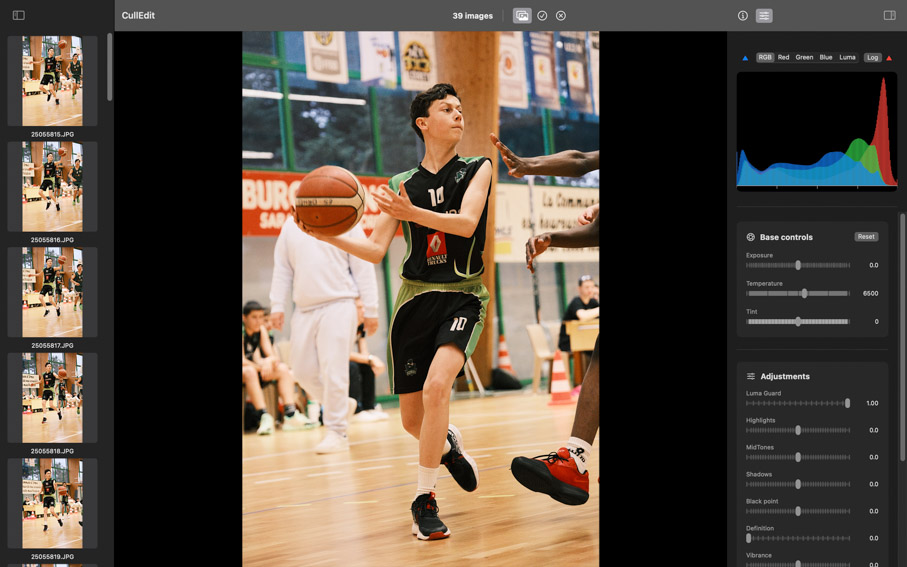
The main CullEdit interface consists of three primary areas:

1. Thumbnail Panel (Left)

  • Displays thumbnails of all images in the current folder
  • Shows image status indicators
  • Allows quick navigation between images

2. Main Image View (Center)

  • Displays the currently selected image
  • Shows the full-size image with zoom and pan capabilities
  • Updates in real-time as you make adjustments

3. Sidebar (Right)

  • Contains two tabs: Info and Development
  • Info tab shows image metadata and file information
  • Development tab provides development tools and adjustments for both RAW and standard files
culledit-main-screen-development

Basic Navigation

Navigate through your images using these methods:

  • Keyboard arrows: Press / arrow keys to move between images
  • Mouse: Click on any thumbnail in the left panel to display the image in the main view

Basic Image Triaging

CullEdit is designed for fast image triaging workflows:

  • Select images: Press S to mark an image as selected
  • Reject images: Press R to mark an image as rejected
  • Show all images: Press A to show all images
  • Show selected images: Press Z to show only selected images
  • Show rejected images: Press E to show only rejected images

Advanced Features Overview

Real-time Histogram

  • Live exposure analysis
  • RGB and luminosity channels
  • Clipping indicators for highlights and shadows

Image Processing

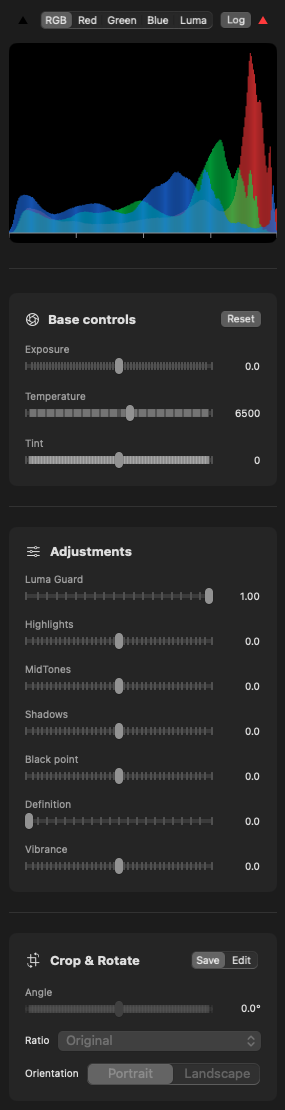
CullEdit provides professional and non destructive development tools:

  • Exposure controls (-3.0 to +3.0 EV)
  • White balance adjustment (2000K to 15000K)
  • Tint adjustment
  • Luma Guard (proprietary technology for enhanced highlight recovery)
  • Highlights, midtones and shadows corrections
  • Black point adjustment
  • Vibrance adjustment
  • Definition enhancement (mixture of midtones contrast and sharpness)
  • Crop and rotate tools

Metal GPU Pipeline

  • Hardware-accelerated image processing in 32 bits float
  • Real-time adjustments with smooth performance
  • Optimized for Apple Silicon Macs

Batch Export

  • Export multiple images with consistent settings
  • Multiple output format options (JPEG, PNG, TIFF)
  • Customizable filename patterns
  • Metadata preservation
culledit-development-view

Next Steps

After reading this quick start guide, you can explore more advanced features in the other documentation sections:

  • Learn about viewing modes
  • Discover advanced development tools for image processing
  • Master keyboard shortcuts for faster workflow and use control surfaces like LoupeDeck Live
  • Configure export settings for batch processing

For detailed information about any feature, refer to the corresponding section in the user documentation.